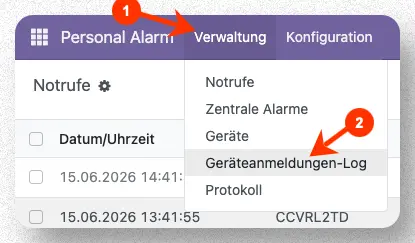
Accessing the Device Login Log
To open the Device Login Log, navigate to the Administration menu and select Device Login Log.
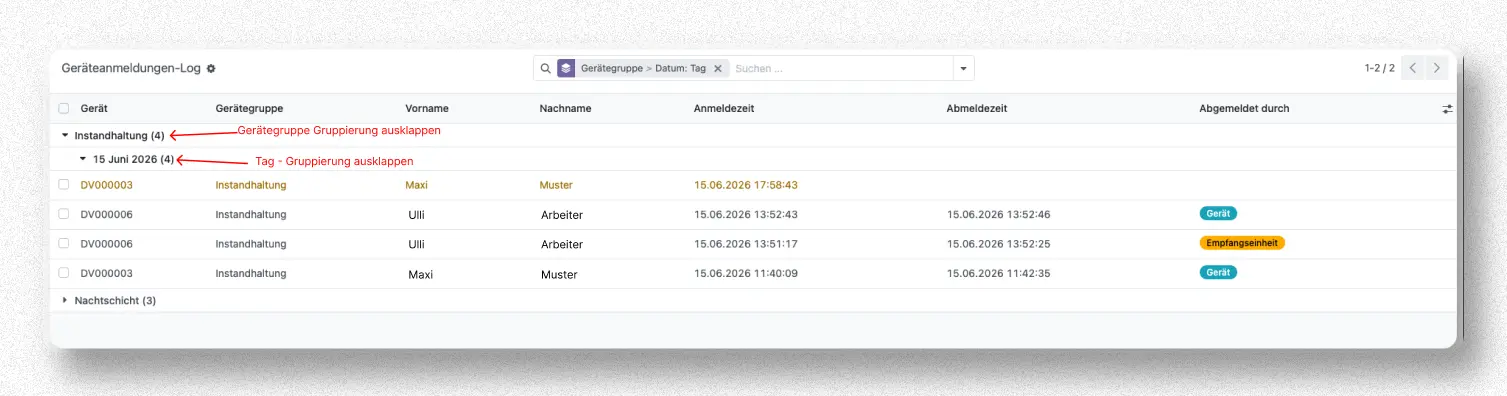
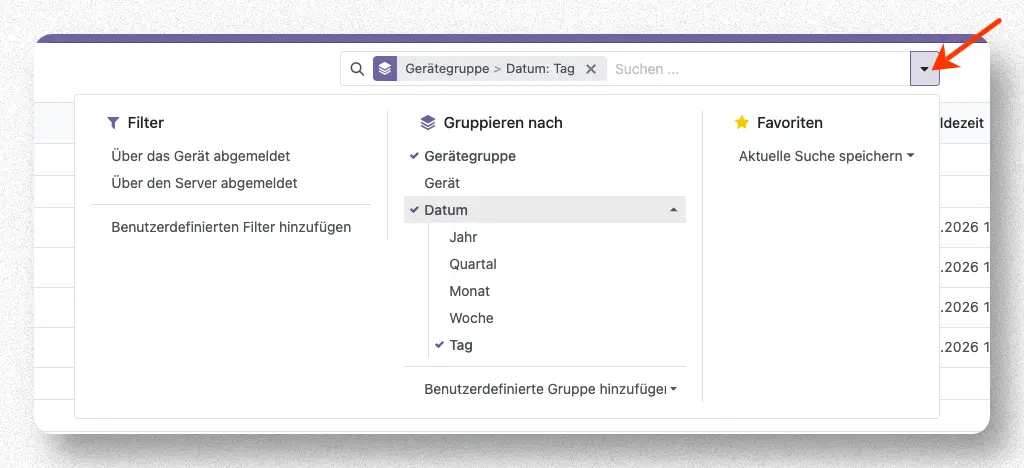
By default, entries in the Device Login Log are grouped by device groups. Clicking the arrow next to a device group expands and displays the associated entries.

The standard filter also includes a grouping by day, meaning that all log entries for a device group are automatically organized by date. Clicking the arrow next to a specific date displays the individual log entries for that day.
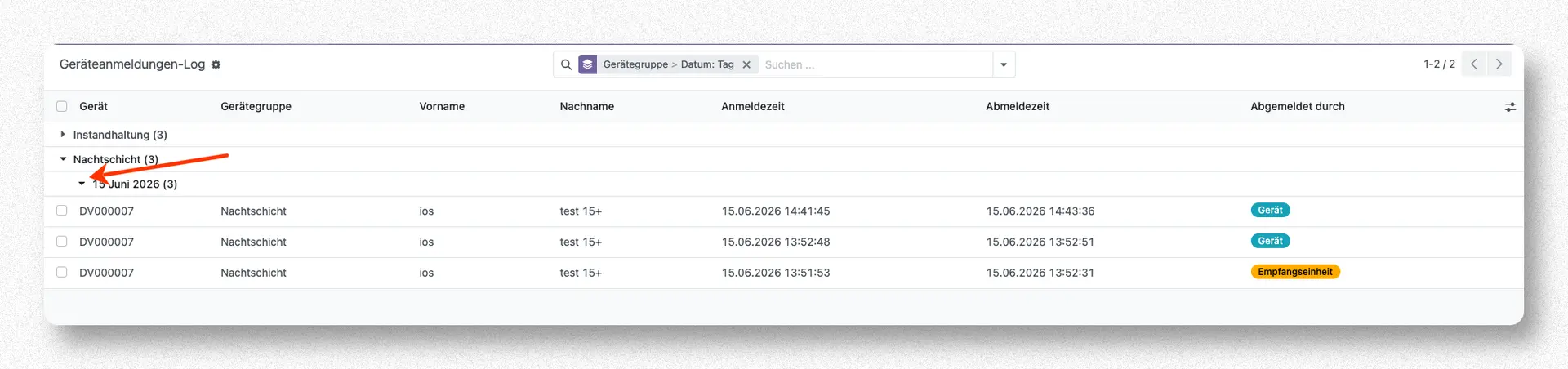
In the search bar above the list of log entries, the active default grouping or filter is displayed as a grey tag. You can remove the default grouping by clicking the X icon.
The search bar can be expanded into a drop-down menu. Using this menu, you can add, modify, or remove filters and groupings.
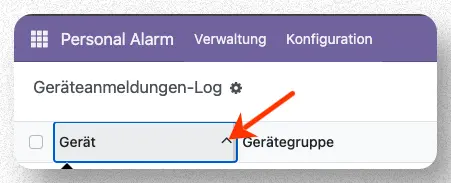
Log entries can also be sorted by clicking the arrow icon on the right side of a column header.
Each log entry in the list view can be selected. Clicking an entry opens the detailed view for that record.
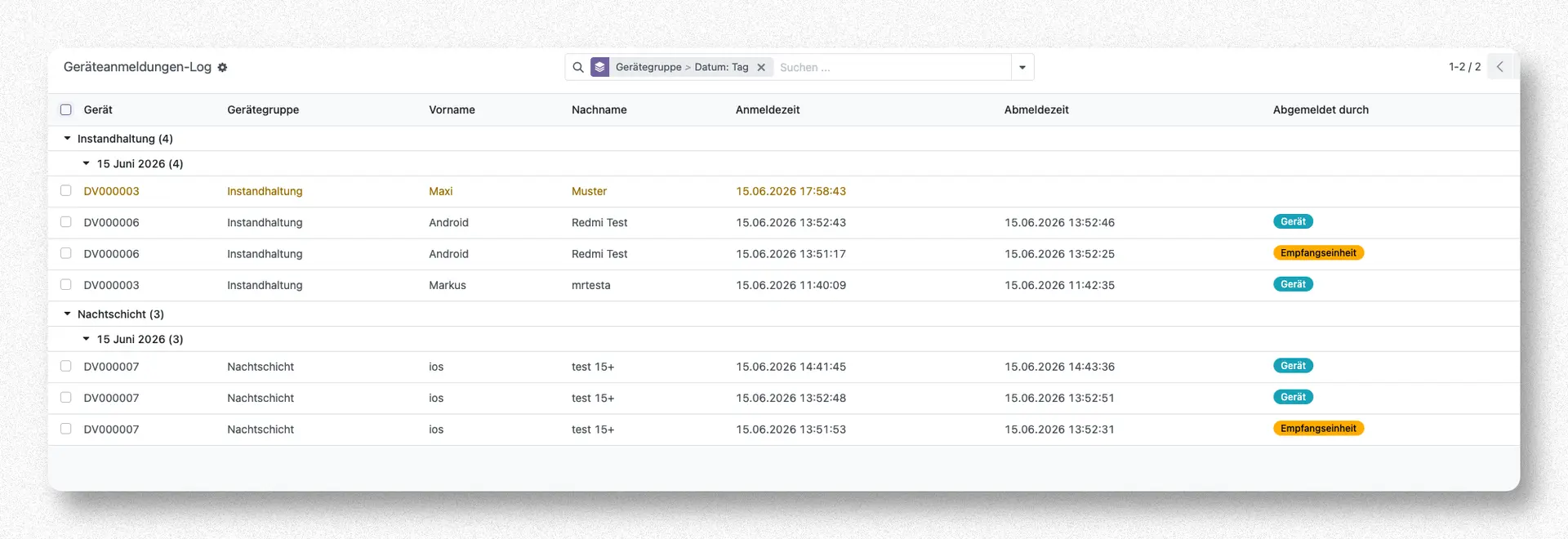
Device Login Log Records
Device
- The device name assigned during the configuration of the PNG device in the receiving unit. Clicking the device name opens the device configuration.
Device Group
- The name of the device group to which the PNG device is currently assigned. Clicking the device group name opens its configuration view.
First Name
- The first name used by the user when logging into the device.
Last Name
- The last name used by the user when logging into the device.
Login Time
- The date and time when the user logged into the RS Personal Alarm App on the PNG device.
Logout Time
- The date and time when the user logged out of the RS Personal Alarm App.
Logged Out By
- Normally, users should log out directly from the RS Personal Alarm App on the PNG device. In such cases, the value “Device” is recorded in this field.
In exceptional circumstances, an administrator may be required to log out a user via the receiving unit. In these cases, the value “Receiving Unit” is recorded.
- Normally, users should log out directly from the RS Personal Alarm App on the PNG device. In such cases, the value “Device” is recorded in this field.
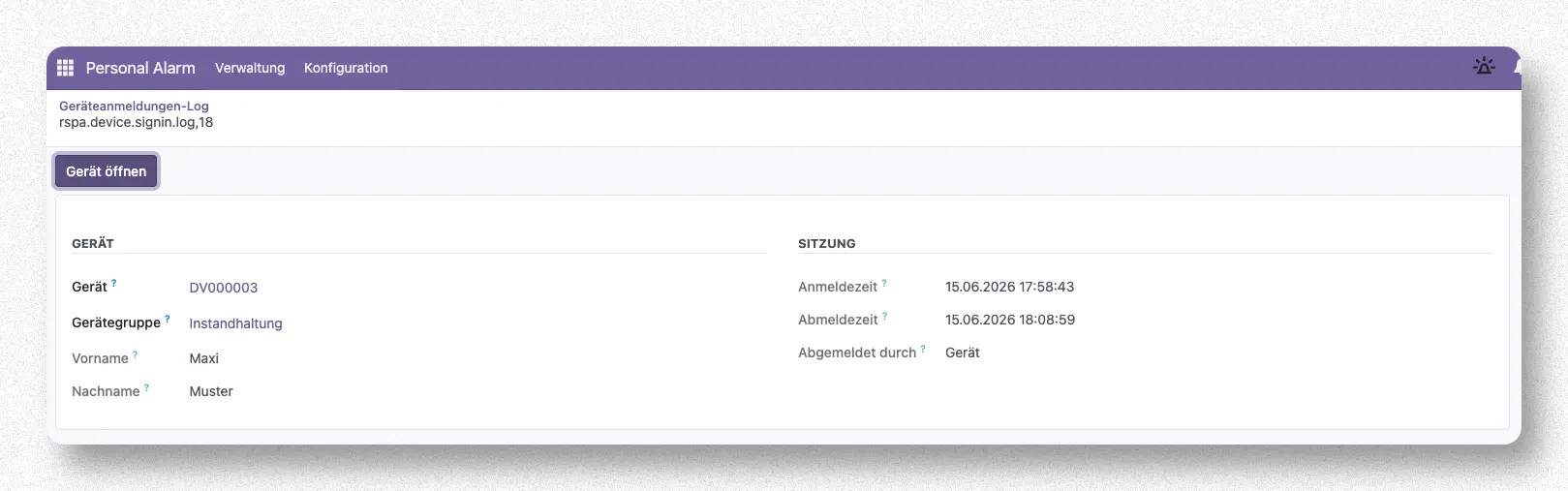
To ensure secure, consistent, and traceable documentation of application usage, log entries cannot be edited.
Exporting the Device Login Log
This allows you to include the log in printed documentation, archive records externally and perform additional data analysis in Microsoft Excel or other spreadsheet tools
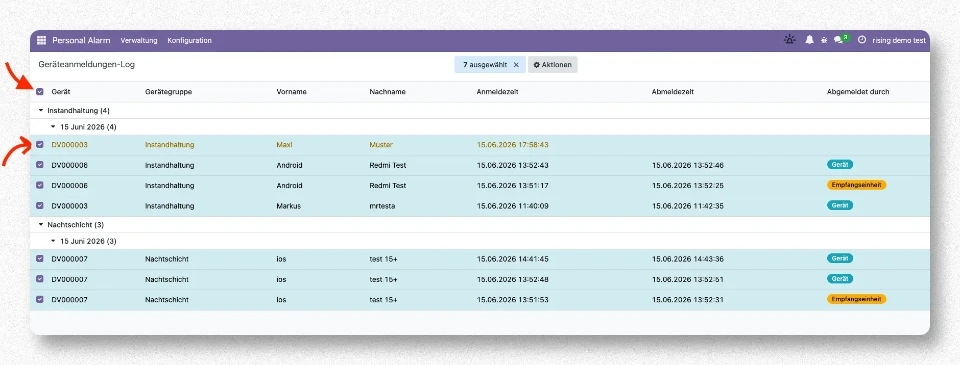
Before exporting, the desired entries must be selected. To select all currently displayed entries, enable the checkbox located on the left side of the table header. Individual entries can be selected using the checkboxes next to each record.
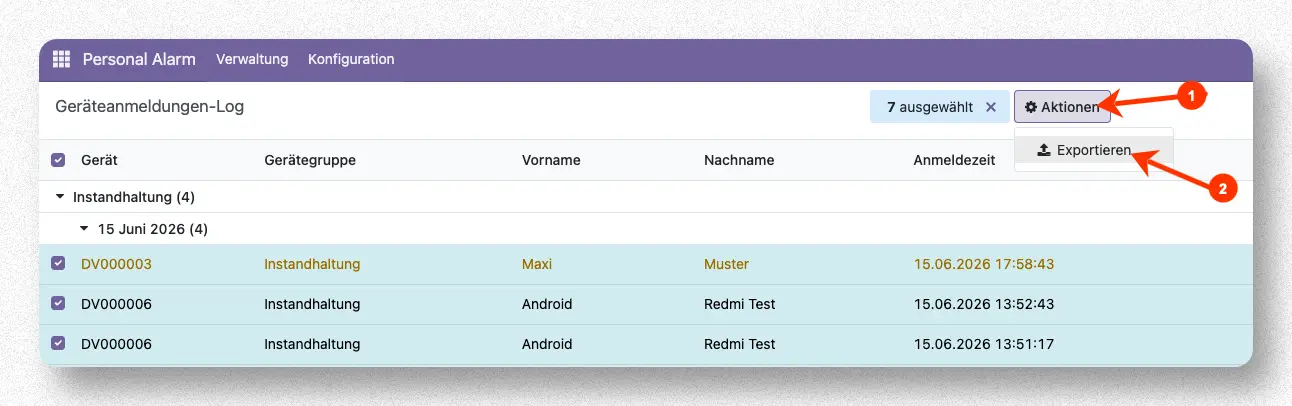
Once the desired entries have been selected, click the Actions button above the list and choose Export from the menu.
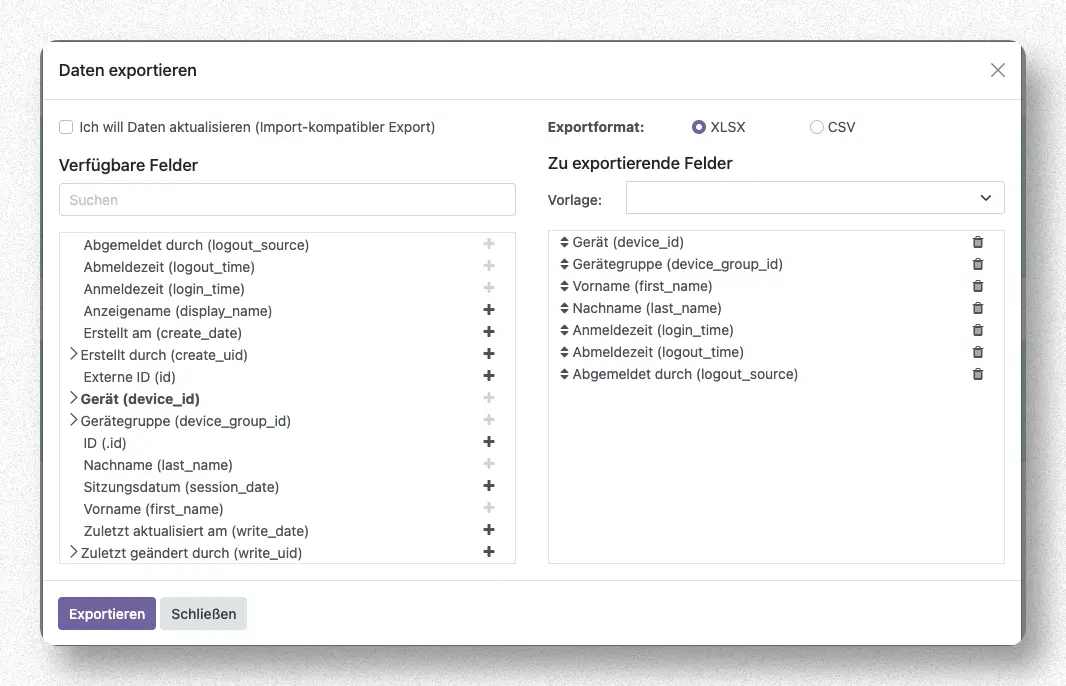
The Export Data dialog will open. Here, you can select the export format (XLSX or CSV), customize which fields are included and adjust the order of exported fields. Click Export to generate the file.
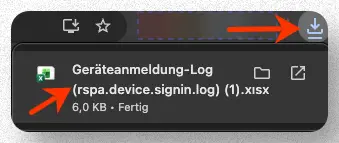
The exported file will be saved to the default Downloads folder configured in your web browser and can be opened from there.
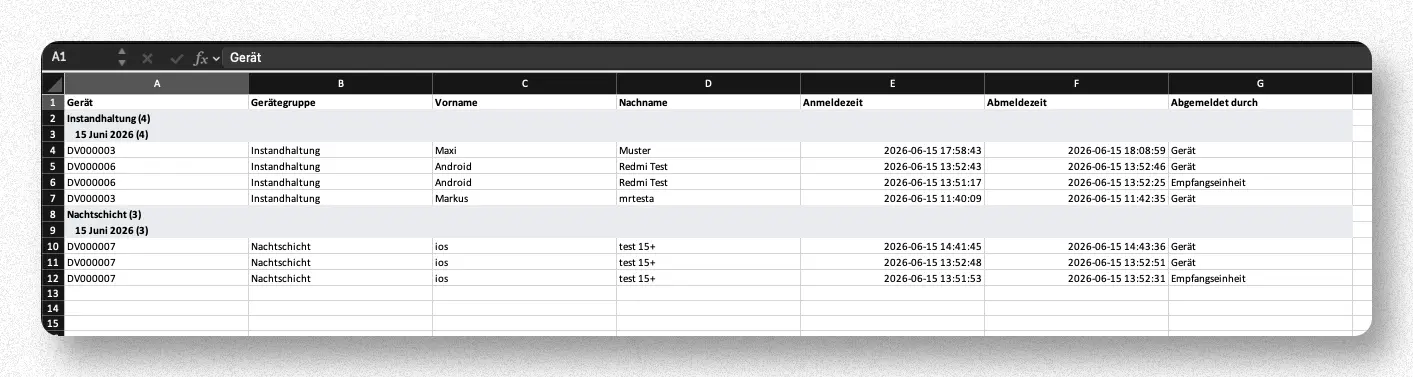
The resulting Excel file contains the selected log entries, as shown in the example report below.